Saved report views, actions that follow you down the list, and quicker task type changes
Save any report you open often as a view of your own and get back to it in one click. The actions for selected entries now float at the bottom of the screen, changing an entry's task type starts on its own project with the closest names first, and moving entries to another project can keep each one's task type.
What's new
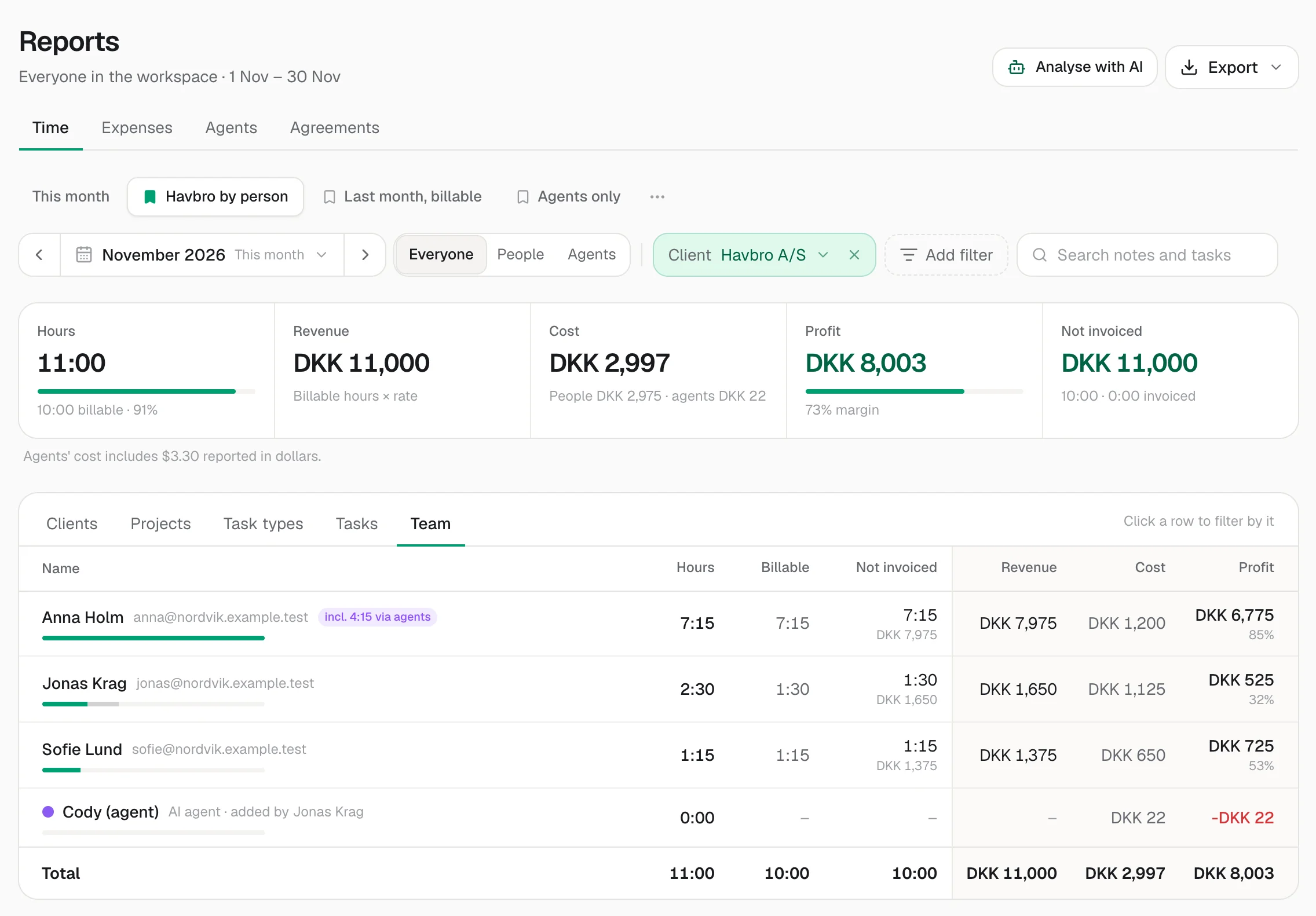
- Reports: save the period, filters and grouping you see as a view, and switch between your views as tabs
- Reports: a view on “This month” or “Last week” stays relative, so it always shows the current period
- Reports: change a view and save the changes or save it as a new one; rename, delete and drag to reorder
- Reports: views are personal, so everyone keeps their own
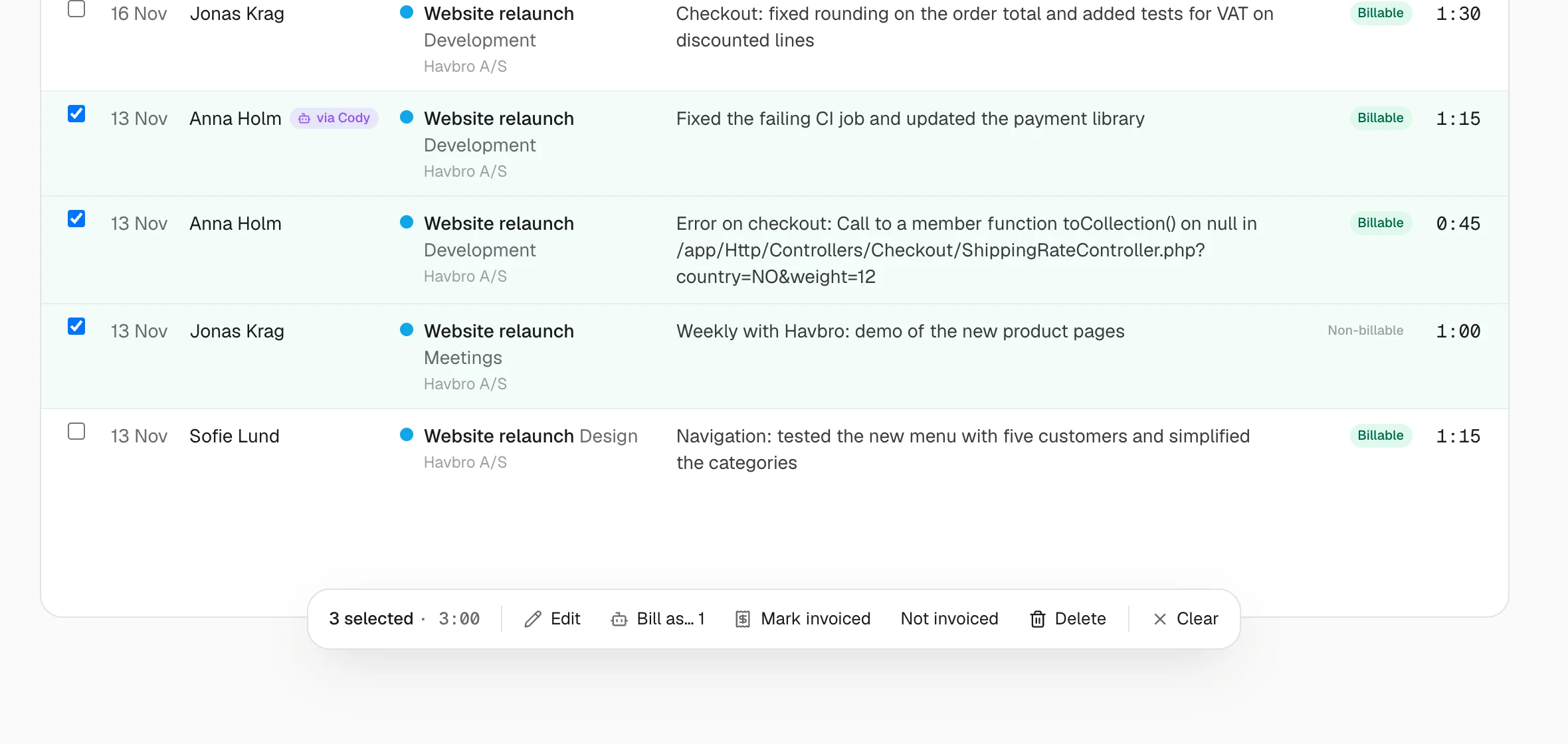
- Reports: tick entries anywhere in a long report and Edit, Split, Bill as, Mark invoiced and Delete float at the bottom of the screen
- Reports: Shift-click selects every entry between two, and Esc clears the selection
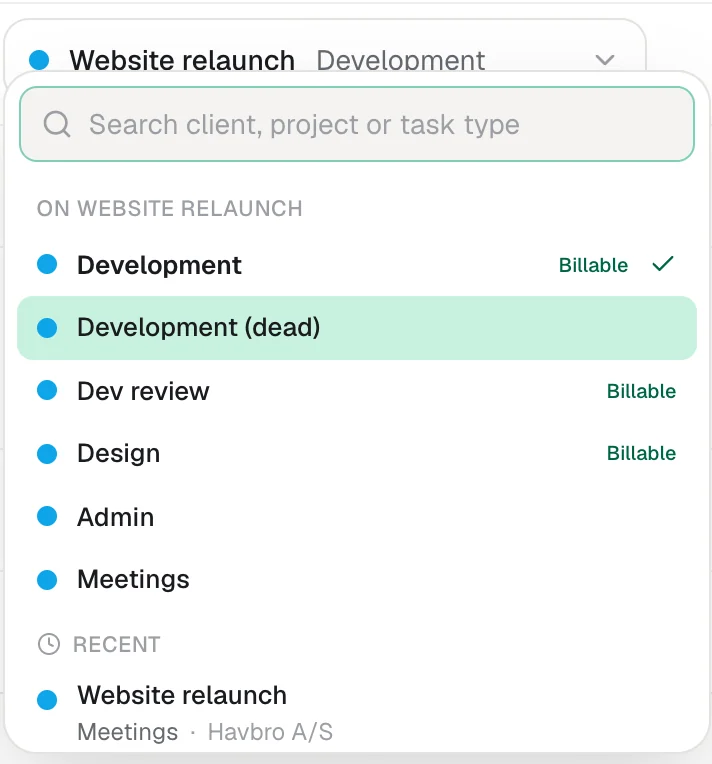
- Changing an entry's task type opens on the task types of its own project, the closest names first: “Development (dead)” right after “Development”
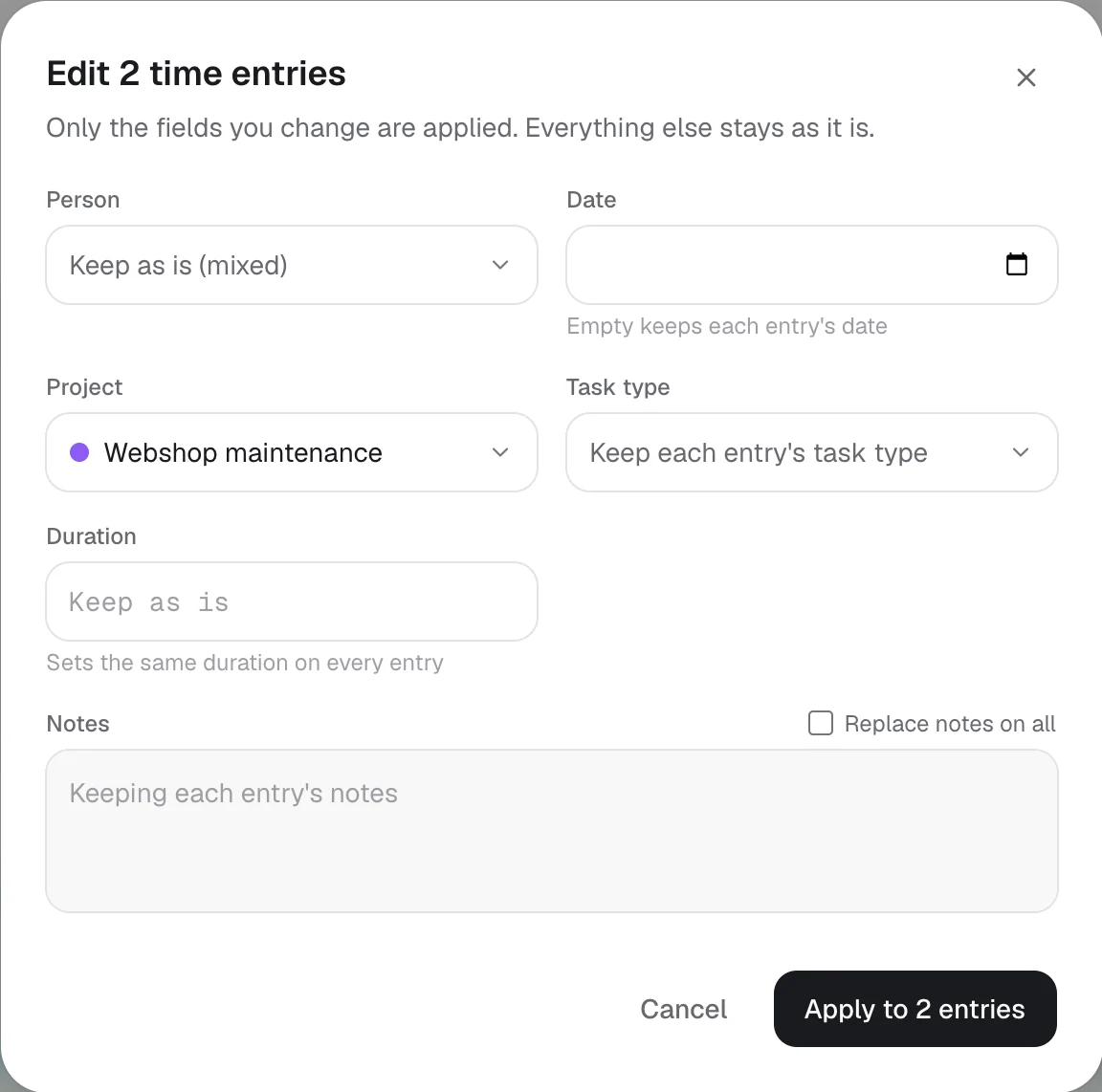
- Bulk edit: move several entries to another project and keep each entry's task type; it says up front if a type isn't on the new project
Most people open Reports to the same few reports: one client this month by person, last month's billable time, what the agents did. Now you save each of them once. Set the period, filters and grouping, choose Save view and give it a name, and it sits in a row of tabs at the top of Reports, next to “This month”. A period like this month, last week or last quarter is saved as just that, so the view moves along with the calendar; fixed dates stay fixed. Change something while a view is open and Save changes or Save as new view appear. Views are your own: nobody else sees them, and everyone on the team can keep theirs.
Selecting entries at the bottom of a long report used to mean scrolling back to the top to do anything with them. Now the actions come to you: as soon as something is ticked, a bar floats at the bottom of the screen with how many and how much time is selected, and Edit, Split, Bill as, Mark invoiced and Delete, each saying how many it will change when some are locked. Shift-click selects everything between two entries, and Esc clears the selection.
Two smaller changes make fixing time quicker. When you change the task type of an entry, the list opens on the task types of the project it's already on, with the current one ticked and the closest names right below it, so going from Development to “Development (dead)” is open and Enter. And when you move several entries to another project, they can keep their own task types instead of all getting the same one; if one of those task types isn't on the new project, the dialog says so before you save. As always, all of it is included on every plan.
More in Time
Track your first hour in a minute.
Free for your whole team, forever. Every feature included.