Send your time as a PDF, with your logo
Export the time report as a PDF that's ready to send to a client: your logo and company details at the top, every entry by day with the task it was for, and the total at the bottom. Hours your AI agents logged are on it too, marked as theirs.
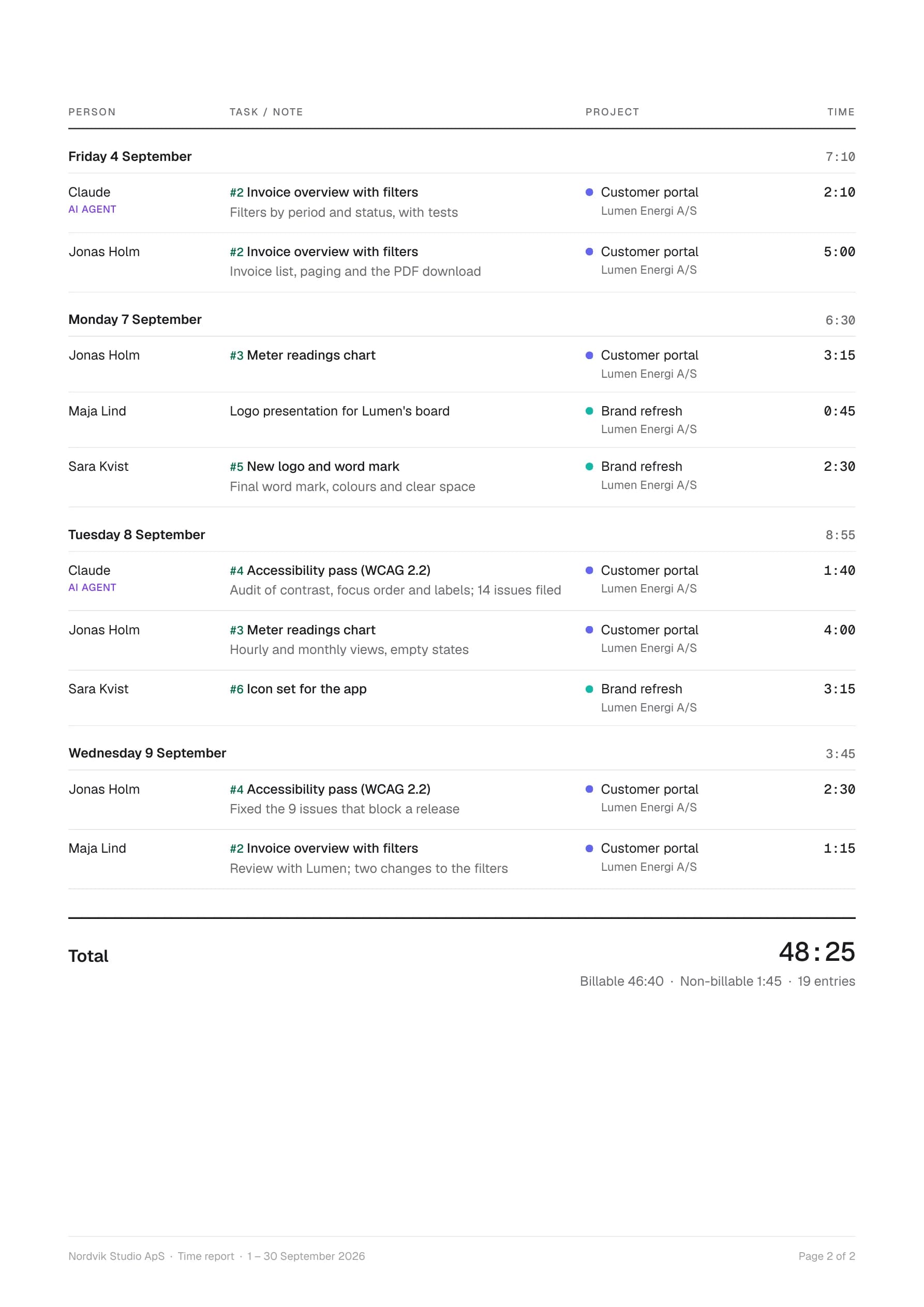
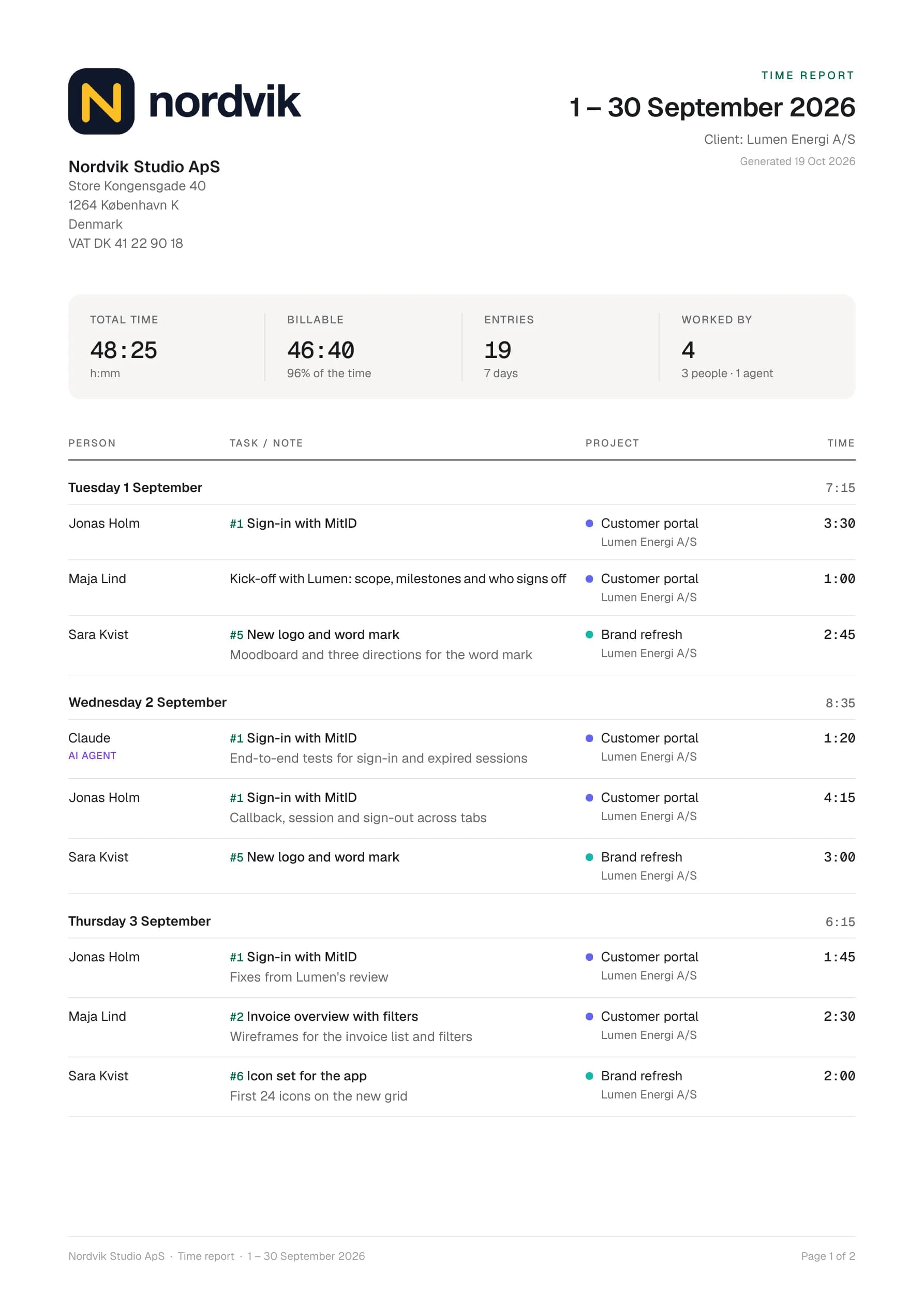
- Your logo and companyName, address and VAT number from Settings, top left on the first page.
- The task behind every entry#5 New logo and word mark, with the note underneath when someone wrote what they did.
- People and AI agentsTime an agent logged says so, on its own line.
- Totals that add upA total per day, and the period's total with billable and non-billable at the bottom.
What's new
- Reports → Export → PDF report: the period, the filters you picked, and every entry, up to three months at a time
- Your logo top left, with company name, address and VAT number from Settings → Company details
- Each entry shows who, the task it was tracked on (#12 and its title), the note, the project and client, and the time
- Entries grouped by day with a total per day, and the period's total with billable and non-billable at the bottom
- Time logged by AI agents is on its own line and marked as an agent's, so a client sees exactly who did the work
- In the report's entry list, the task now shows next to the note too, even when someone rewrote the note
- Agents have their own report: Reports → Agents shows how long they worked per request and how their finished tasks turned out
- Show only people's hours or only agents' with Everyone · People · Agents; Hourtick remembers your choice
Clients ask what they're paying for, and until now the answer from Hourtick was a CSV. Now the Time report exports a PDF you can attach to an email as it is. Pick the period and filter to the client, open Export and choose PDF report. The first page has your logo and your company's name, address and VAT number; the title says the period and what the report covers, such as one client or one project. Four figures sum it up: total time, billable time, the number of entries and who worked. Then every entry follows, day by day, with a total for each day, and the period's total closes the report. It shows hours, not money, so you can send it to anyone; amounts belong on the invoice.
Every entry carries the task it was tracked on. When you start a timer on a task, the note starts out as the task's title, and people often rewrite it to say what they actually did. The PDF shows both: #5 New logo and word mark, with “Final word mark, colours and clear space” underneath. The entry list in Reports does the same now, with the task number linking to the task. Time your AI agents logged is on the report like everyone's, with the agent's name and an AI agent label, so a client can see what people did and what the agents did.
Set it up once in Settings → Company details: drop in your logo (PNG, JPG, SVG or WebP), add the company name, an optional VAT number and the address, and see the header of the PDF update as you type. Admins edit it; everyone in the workspace can see it. A PDF covers up to three months, so it stays a document people read; for longer periods, export a CSV. Like everything in Hourtick, the PDF is included on every plan.
More in Time
Track your first hour in a minute.
Free for your whole team, forever. Every feature included.